
How to Add Anchor Links to Your Squarespace Website
If you've ever landed on a page and wished you could jump straight to the bit you actually wanted to read, anchor links are exactly what you need.
As a Squarespace website designer, I use anchor links all the time to make websites easier to navigate, especially on pages with lots of information. They're simple to set up and can make a big difference to your visitors' experience.
What are anchor links?
Anchor links let someone click a button or piece of text and jump straight to a specific section on the same page.
They're perfect for:
Service pages with multiple services.
FAQ pages.
Long-form blog posts.
Landing pages with lots of sections.
Rather than making people scroll to find what they're looking for, you can help them get there in one click.
A great way to use them
One of my favourite ways to use anchor links is on service pages.
Instead of creating a separate page for every service, you can have one main Services page with a simple menu at the top.
For example:
Website Design
Website Audits
SEO
Website Support
When someone clicks one of those links, they're taken straight to that section of the page. It keeps everything organised and makes it much easier for visitors to find exactly what they need.
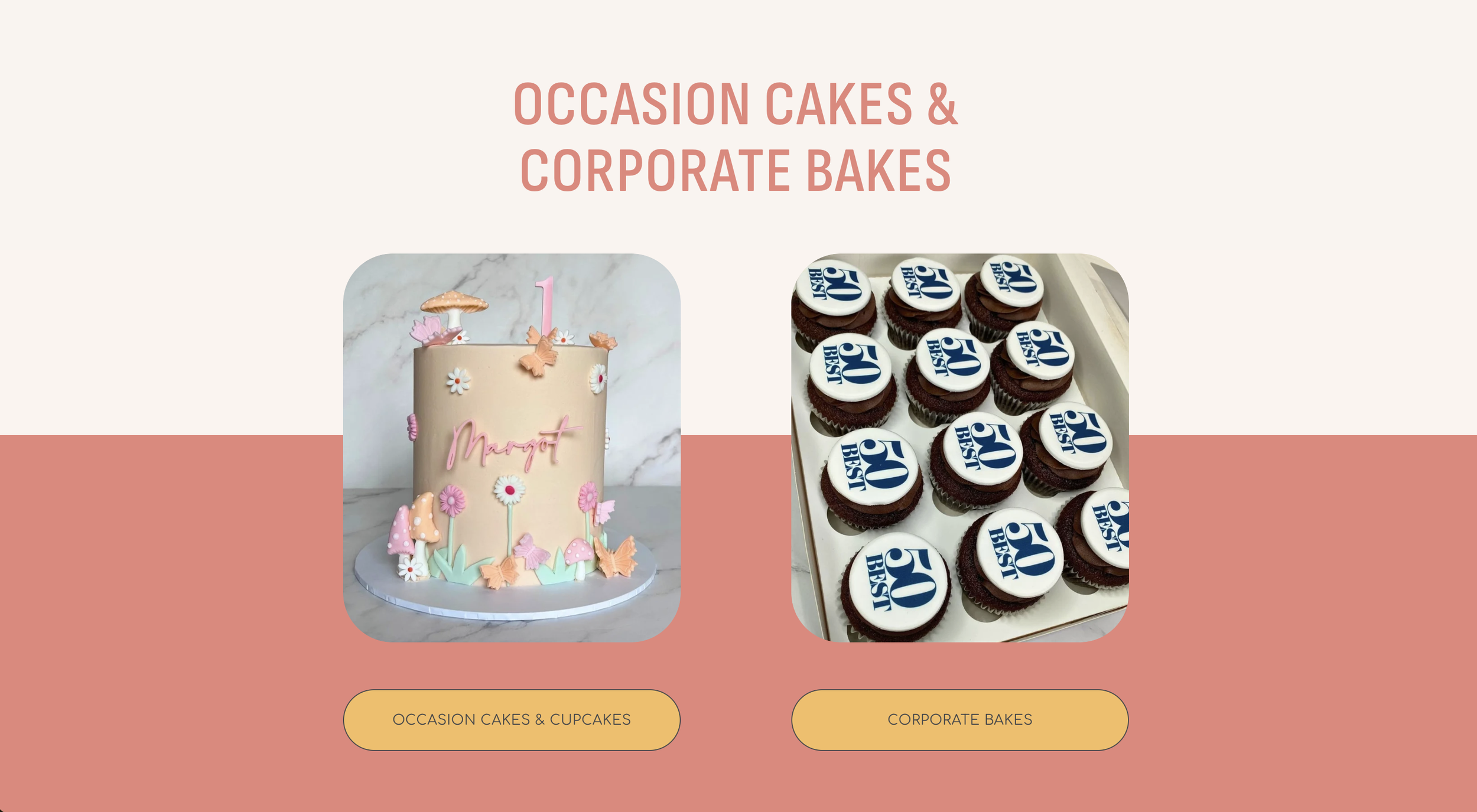
This is an example on the Bakes By Hester website that I created. Hester needed both ‘Occassion Cakes’ & ‘Corporate Bakes’ on one page as there wasn’t enough content to warrant a page each, so I added anchor links to these buttons which feature above the fold on the webpage.
How to add anchor links in Squarespace
The good news is that it's really straightforward.
Step 1: Add an anchor to your section
Scroll to the section you want people to jump to.
Go to the ‘Edit Section’ menu and scroll down to ‘Anchor Link’.
Add a simple name in here that’s relevant to the section, for example:
website-design
Try to keep it short and use hyphens instead of spaces.
Use the quick copy icon to copy it.
Step 2: Create your menu
At the top of your page, add some text or buttons for each section.
For example:
Website Design
Website Audits
SEO
Website Support
Step 3: Link each item
Highlight your text or button that you want users to click and add a link.
Instead of linking to another page, just paste your copied anchor link in.
If your anchor is called website-audits, your link could be:
#website-audits
That's it! Done job.
Why I recommend using anchor links
As a Squarespace website designer, I'm always looking for simple ways to improve the experience for website visitors.
Anchor links help people find what they're looking for faster, make longer pages feel less overwhelming, and can encourage visitors to stay on your website for longer because everything is easy to navigate.
They're one of those small changes that can have a surprisingly big impact.
Final thoughts
If you have a page that's getting a little long, don't feel like you need to split everything onto separate pages.
Adding anchor links is an easy way to keep everything together while making your website much more user-friendly.
It's one of my favourite little Squarespace tricks, and once you've used it, you'll probably start adding them everywhere!
If you're looking for help creating a website that's easy to navigate and designed with your visitors in mind, working with a Squarespace website designer can help you make the most of features like this without overcomplicating things.